I came across this the other day, when the IIS install failed because 'the source files could not be found' on Windows Server 2016.
You need to locate your source DVD or, in my case, I had the ISO image on the server available to me.
Double click on the ISO image and copy the SOURCE folder to a temporary drive.
In the IIS install, select 'specify an alternate source path'. Point to ....\source\sxs from the copied source folder.
The install should now complete successfully.

Friday, 27 July 2018

Tuesday, 3 April 2018
Autodesk 2019 NLM products - Error [0,0,0]
Monday, 12 March 2018
AutoCAD - Flatten geometry to 2D
How many times do you open up a 2D drawing only to notice that the geometry is on different Z levels!
Try this:
Try this:
Make sure the layers are unlocked
copy and paste these two lines
(command "MOVE" (ssget "x") "" "0,0,0" "0,0,1e99")
(command "MOVE" (ssget "p") "" "0,0,0" "0,0,-1e99")
(command "MOVE" (ssget "p") "" "0,0,0" "0,0,-1e99")
Monday, 22 January 2018
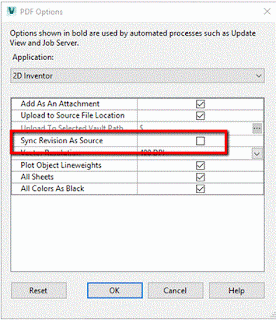
Vault Pro Job Processor - PDF Sync errors
The issue is connected to the option to sync the revision of the pdf file with the revision of the source file. Deactivating this option will solve the problem:

Thursday, 14 December 2017
Publishing PDF files from Vault Pro 2018 with the revision appended to the file.
In order for the Vault job processor to automatically create PDF files with the revision number/letter appended to the end of the file, you need to edit a config file on the machine that is running the Job Processor.
First, you need to make a copy of the JobProcessor.exe.config file located in the <install dir>\Vault Professional 2018\Explorer folder. Use a text editing software, such as Notepad, to open and edit the file.
Add the following line before </appSettings> towards the bottom of the file:
<add key="DesignRepresentation.Naming" value="\.(dwg)$/<_name_>-<Revision>"/>
This will add a file 1234-A.PDF from a drawing 1234.DWG
Change the (dwg) to (idw) in the line of text if this is for IDW files.
Note: Only 2D PDF files are created from the Job Processor.
First, you need to make a copy of the JobProcessor.exe.config file located in the <install dir>\Vault Professional 2018\Explorer folder. Use a text editing software, such as Notepad, to open and edit the file.
Add the following line before </appSettings> towards the bottom of the file:
<add key="DesignRepresentation.Naming" value="\.(dwg)$/<_name_>-<Revision>"/>
This will add a file 1234-A.PDF from a drawing 1234.DWG
Change the (dwg) to (idw) in the line of text if this is for IDW files.
Note: Only 2D PDF files are created from the Job Processor.
Inventor Drawing Custom properties do not appear in Vault Data Standard dialog
Although you may be using only one drawing template file type in Inventor, it is important to ensure that the relevant custom properties are in both the IDW & DWG templates.
You must then map the Vault Property UDP to both file types within Vault Explorer.
The custom properties will not be showing in the VDS dialog.
You must then map the Vault Property UDP to both file types within Vault Explorer.
The custom properties will not be showing in the VDS dialog.
Monday, 23 October 2017
Fusion 360 CAM Engraving tool path is very slow
If you are creating CNC code for engraving from Fusion 360, you may find the tool path very slow.
This is because engraving does not output arcs (G02/G03), only lines (G01)!
So the best way around this is to reduce the TOLERANCE here (was set to 0.01).

This is because engraving does not output arcs (G02/G03), only lines (G01)!
So the best way around this is to reduce the TOLERANCE here (was set to 0.01).

Wednesday, 27 September 2017
Inventor HSM add-in causes Inventor FILE pulldown to hang
Users of Inventor HSM 2018 as part of the Product Design & Manufacturing collection may find the FILE pulldown menu not working (and also parts of the ribbon).
DELL Precision Laptops may show this behaviour. If so, uninstall the the DELL Backup & Restore Utility.
DELL Precision Laptops may show this behaviour. If so, uninstall the the DELL Backup & Restore Utility.
Tuesday, 30 May 2017
URGENT: Autocad (& LT) 2018 critical patch
Critical Action Required: Install AutoCAD 2018.0.2/AutoCAD LT 2018.0.2 Update
A few weeks ago, we explained a mistake that was made with the 2018.0.1 Update and quickly resolved the issue by releasing the AutoCAD 2018.0.2/AutoCAD LT 2018.0.2 Update*.
As this update fixes a defect that would cause the product to not start, it is critical for users who installed the initial 2018.0.1 Update to install the AutoCAD 2018.0.2/AutoCAD LT 2018.0.2 Update as soon as possible and before June 1, 2017.
Here’s how to do so in three easy steps:
Step 1: Sign in to your Autodesk Account
Step 2: Choose Product Updates on the MANAGEMENT page.

Step 3: You will see the option for the AutoCAD 2018.0.2 or AutoCAD LT 2018.0.2 Update. Pick the option that is applicable to your product, download and install it. The AutoCAD 2018.0.2 Update applies to the products listed below*.
Important Notes:
The 2018.0.1 version is listed in About dialog for AutoCAD 2018 and AutoCAD LT 2018 as version O.61.0.0. Once updated to the 2018.0.2 version, it will be shown as O.72.0.0.
If you do not install the AutoCAD 2018.0.2 Update by June 1, 2017, the product will not start and will display the following pre-release product error message:

For users who never downloaded the 2018.0.1 Update, the originally released version O.49.0.0 does not exhibit this problem, and will work as expected past June 1, 2017. Even then, we still recommend updating it to the latest version, which is currently 2018.0.2 (displayed as O.72.0.0 in About dialog box).
We apologize for the inconvenience. You can find more information about this update here. For any additional questions, please reach out to us by choosing Support in the upper right-hand corner of the MANAGEMENT page in your Autodesk Account. *AutoCAD 2018.0.2 Update applies to:
AutoCAD® 2018
AutoCAD® Architecture 2018
AutoCAD® MEP 2018
AutoCAD® Mechanical 2018
AutoCAD® Electrical 2018
AutoCAD® Map 3D 2018
AutoCAD® Civil 3D® 2018
AutoCAD® Plant 3D 2018 Advance Steel 2018
AutoCAD LT 2018.0.2 Update applies to AutoCAD LT 2018 only.
A few weeks ago, we explained a mistake that was made with the 2018.0.1 Update and quickly resolved the issue by releasing the AutoCAD 2018.0.2/AutoCAD LT 2018.0.2 Update*.
As this update fixes a defect that would cause the product to not start, it is critical for users who installed the initial 2018.0.1 Update to install the AutoCAD 2018.0.2/AutoCAD LT 2018.0.2 Update as soon as possible and before June 1, 2017.
Here’s how to do so in three easy steps:
Step 1: Sign in to your Autodesk Account
Step 2: Choose Product Updates on the MANAGEMENT page.

Step 3: You will see the option for the AutoCAD 2018.0.2 or AutoCAD LT 2018.0.2 Update. Pick the option that is applicable to your product, download and install it. The AutoCAD 2018.0.2 Update applies to the products listed below*.
Important Notes:
The 2018.0.1 version is listed in About dialog for AutoCAD 2018 and AutoCAD LT 2018 as version O.61.0.0. Once updated to the 2018.0.2 version, it will be shown as O.72.0.0.
If you do not install the AutoCAD 2018.0.2 Update by June 1, 2017, the product will not start and will display the following pre-release product error message:

For users who never downloaded the 2018.0.1 Update, the originally released version O.49.0.0 does not exhibit this problem, and will work as expected past June 1, 2017. Even then, we still recommend updating it to the latest version, which is currently 2018.0.2 (displayed as O.72.0.0 in About dialog box).
We apologize for the inconvenience. You can find more information about this update here. For any additional questions, please reach out to us by choosing Support in the upper right-hand corner of the MANAGEMENT page in your Autodesk Account. *AutoCAD 2018.0.2 Update applies to:
AutoCAD® 2018
AutoCAD® Architecture 2018
AutoCAD® MEP 2018
AutoCAD® Mechanical 2018
AutoCAD® Electrical 2018
AutoCAD® Map 3D 2018
AutoCAD® Civil 3D® 2018
AutoCAD® Plant 3D 2018 Advance Steel 2018
AutoCAD LT 2018.0.2 Update applies to AutoCAD LT 2018 only.
Friday, 7 April 2017
Inventor 2018 - Migrate Styles & Templates
Here's a short video on how to migrate legacy Styles & Templates to Inventor 2018.
https://youtu.be/tZsQEDWWU0E
Wednesday, 5 April 2017
Tuesday, 21 March 2017
Autodesk 2018 products released today
Users should see 2018 version of Autocad LT, Autocad, Inventor LT, Inventor & Vault, available for download today.
Go to your Autodesk Account for more details:
https://manage.autodesk.com
Go to your Autodesk Account for more details:
https://manage.autodesk.com
Monday, 12 September 2016
Vault 2017 crashes on install
In the UK, follow this:
In Windows Explorer, go to this folder " C:\Program Files\Common Files\Autodesk Shared\CLM\V3\MSVC14\resources\adlm"
Copy the contents of the mainstream local folder to your locale.
Copy the contents of the mainstream local folder to your locale.
For example: If you are using a Windows with a English (United Kingdom) locale, copy the "en-US" folder and paste it in the same location above but rename it to "en-GB" folder.
Once this has been copied, it should be possible to start the Vault client without it crashing
Monday, 6 June 2016
2017 service packs for June
Here are some of the latest service packs for the Autodesk 2017 product range:
Inventor 2017 products
Autocad 2017 products
Inventor 2017 products
Autocad 2017 products
Friday, 29 April 2016
Autodesk Network Licence error -15
Autodesk Network
License Manager needs the following TCP ports open through the firewall so that
client workstations are able to obtain a license from your license server
system.
·
lmgrd.exe needs INCOMING TCP ports 27000 to 27009.
·
adskflex.exe needs 2080.
Friday, 1 April 2016
Vault 2017 System Requirements
A useful link to the system requirements of Vault 2017 - no surprises this release!
https://knowledge.autodesk.com/support/vault-products/troubleshooting/caas/CloudHelp/cloudhelp/2017/ENU/Vault-Install/files/GUID-B64117E4-FA07-4145-8B5F-86973B13EB11-htm.html
https://knowledge.autodesk.com/support/vault-products/troubleshooting/caas/CloudHelp/cloudhelp/2017/ENU/Vault-Install/files/GUID-B64117E4-FA07-4145-8B5F-86973B13EB11-htm.html
Thursday, 31 March 2016
Autodesk 2017 product keys
Please note that when installing Autodesk 2017 products, the Product Key contains the letter "I" and NOT the number "1" (at the 4th position).
i.e. AutoCAD 2017 product key is 001I1 (zero zero one "I" one)
i.e. AutoCAD 2017 product key is 001I1 (zero zero one "I" one)
Wednesday, 30 March 2016
What's new in Inventor 2017
Here is a link on what's new in Inventor 2017. http://www.autodesk.com/campaigns/inventor
And here is a video link https://www.youtube.com/watch?v=CjjTDP7UQPI
And here is a video link https://www.youtube.com/watch?v=CjjTDP7UQPI
Tuesday, 15 March 2016
After installing User Tools, Rev Cloud icon does not appear
When you install UserTools.msi, it creates a folder called UserTools in the same place as the msi file. If you want the DrawingTools, you need to go into the UserTools folder > DrawingTools folder > Bin folder. The RegisterDrawingTools.exe will add the tool to the Inventor Add-Ins Tab.
- Open CMD.exe as administrator (use the right mouse button).
- Browse to C:\Users\Public\Documents\Autodesk\Inventor 2013\SDK\UserTools\DrawingTools\Bin (where DrawingTools.dll is located).
- Type REGSVR32 DrawingTools.dll and press Enter.
You must use command prompt as administrator. Otherwise registration will not work.
Tuesday, 1 March 2016
Which SQL Server am I running with my Vault?
This is a common question we get asked.
If you Google this, you will be given a number of different solutions!
The answer, however, is quite easy.
In Windows Explorer, navigate to C:\Program Files\Microsoft SQL Server\MSSQL11.AUTODESKVAULT\MSSQL\Log
Navigate to & edit one of the ERRORLOG files using notepad.
At the top you will see all the information that you need in relation to the SQL version installed for the Vault.

If you Google this, you will be given a number of different solutions!
The answer, however, is quite easy.
In Windows Explorer, navigate to C:\Program Files\Microsoft SQL Server\MSSQL11.AUTODESKVAULT\MSSQL\Log
Navigate to & edit one of the ERRORLOG files using notepad.
At the top you will see all the information that you need in relation to the SQL version installed for the Vault.

Subscribe to:
Posts (Atom)